post · Jun 7, 2026 · 4 min read
Homelab Alerts on Your Phone: Integrating Beszel and Uptime Kuma with ntfy
Wire up Beszel and Uptime Kuma to send push notifications through ntfy. Configure Shoutrrr URLs for Beszel, native ntfy integration for Uptime Kuma, set meaningful alert thresholds, and harden everything with access tokens instead of passwords.
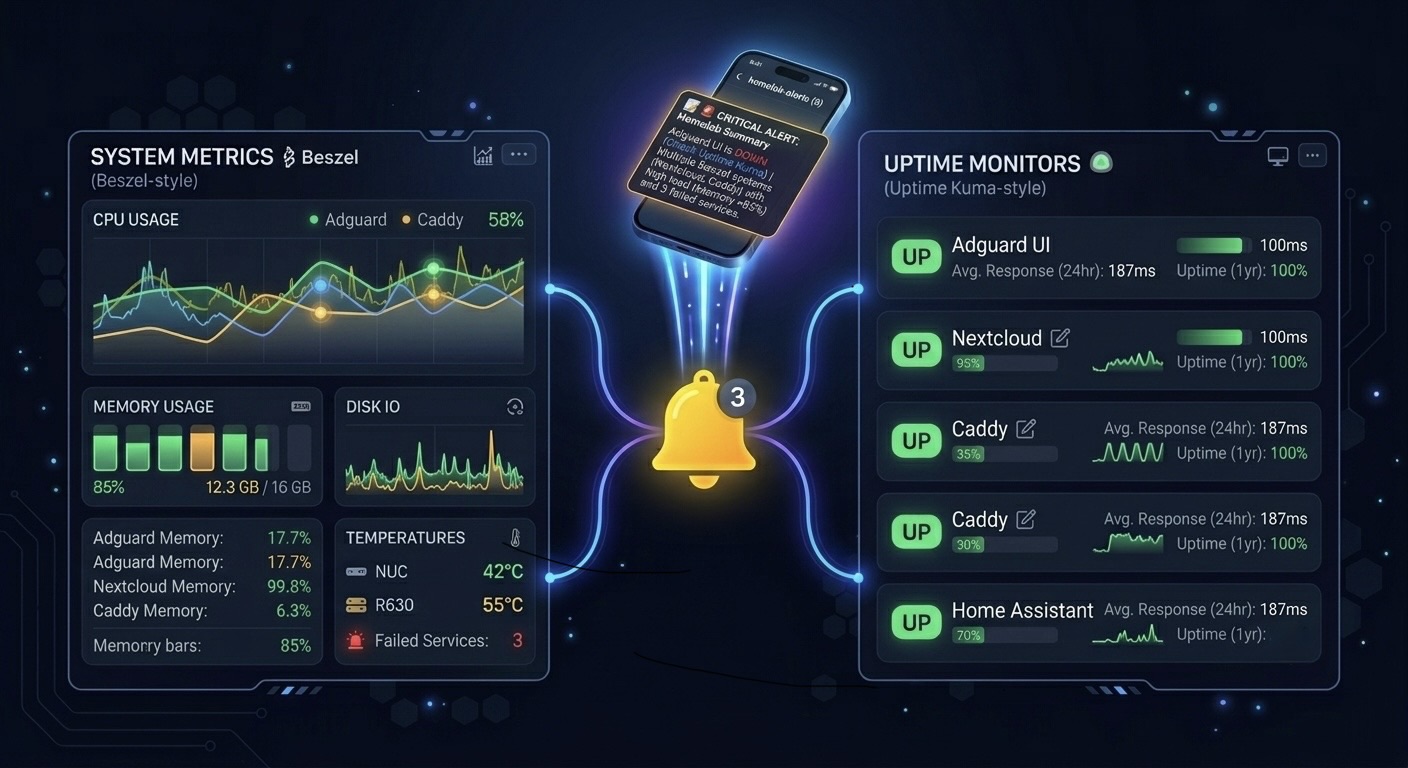
This is part two of the homelab notifications series. In part one we set up ntfy on LXC 158 and apprise on LXC 159. Now we wire up the two monitoring tools already running on the homelab — Beszel and Uptime Kuma — so alerts land on your phone the moment something goes wrong.
Both tools connect directly to ntfy. No apprise in the middle — they both speak ntfy natively, so there’s no reason to add an extra hop.
Beszel ──────────────────────→ ntfy → phone
Uptime Kuma ─────────────────→ ntfy → phone
Sonarr / Radarr / scripts ───→ apprise → ntfy → phone
apprise earns its place with services that don’t have native ntfy support. For monitoring tools that do, go direct.
System Reference
| Property | Value |
|---|---|
| ntfy LXC IP | 192.168.0.158 |
| ntfy alert topic | homelab-alerts |
| Beszel LXC IP | 192.168.0.157 |
| Uptime Kuma LXC IP | 192.168.0.154 |
Part 1 — Beszel
Beszel uses Shoutrrr under the hood for webhook notifications. Shoutrrr has native ntfy support, so the integration is a single URL.
Add the notification URL
Go to Beszel → Settings → Notifications → + Add URL and enter:
ntfy://publisher:<publisher-password>@192.168.0.158/homelab-alerts?scheme=httpWhy ?scheme=http: Shoutrrr’s ntfy scheme defaults to HTTPS. Since ntfy is on an internal LAN IP without TLS, you must explicitly pass ?scheme=http — otherwise Shoutrrr tries to connect on port 443 and fails.
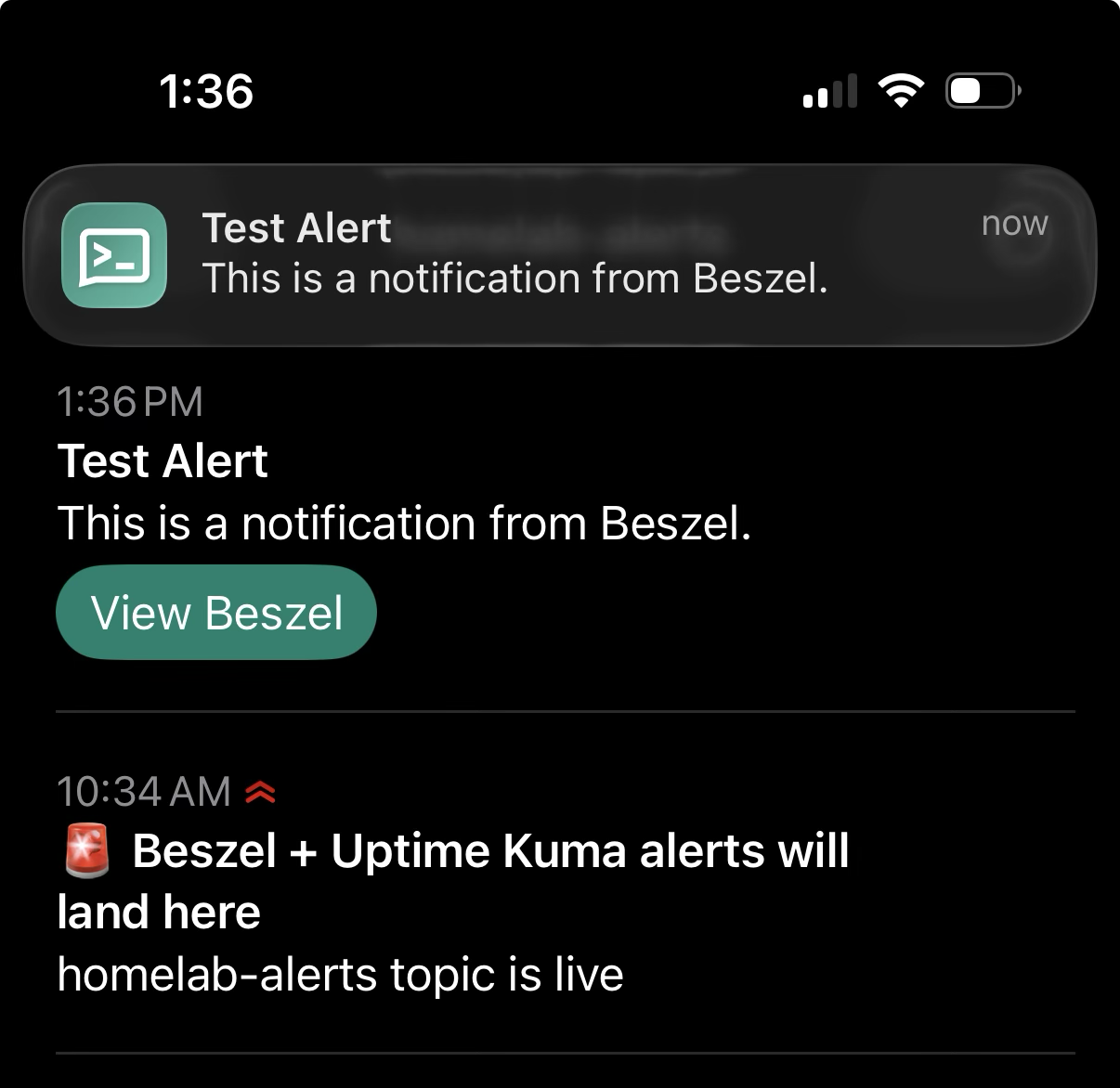
Hit Test — you should receive a notification on your phone. Save Settings.
Set alert thresholds
Click the bell icon next to your Proxmox host in the systems table. Enable these alerts:
| Alert | Threshold | Duration |
|---|---|---|
| Status | — | 2 minutes down |
| CPU Usage | 90% | 10 minutes |
| Memory Usage | 85% | 10 minutes |
| Disk Usage | 85% | 10 minutes |
| Temperature | 80°C | 10 minutes |
| Load Average 5m | 6 | 10 minutes |
Why these thresholds:
- Status at 2 minutes — don’t wait 10 minutes to know your server is down
- Load Average 5m at 6 — the i7-8700T has 6 cores; sustained load above core count is a red flag
- Temperature at 80°C — the 8700T in a mini PC enclosure can get warm under sustained load; 80°C gives you warning before thermal throttling kicks in
- Skip GPU Usage — iGPU passthrough to Immich and Jellyfin will spike this during transcoding constantly, too noisy
- Skip Bandwidth — not critical for a homelab
Part 2 — Uptime Kuma
Uptime Kuma has ntfy as a built-in notification type — no Shoutrrr URL needed.
Go to Settings → Notifications → Add Notification:
- Notification Type: ntfy
- Name:
ntfy-homelab-alerts - Server URL:
http://192.168.0.158 - Topic:
homelab-alerts - Username:
publisher - Password: your publisher password
- Priority: High
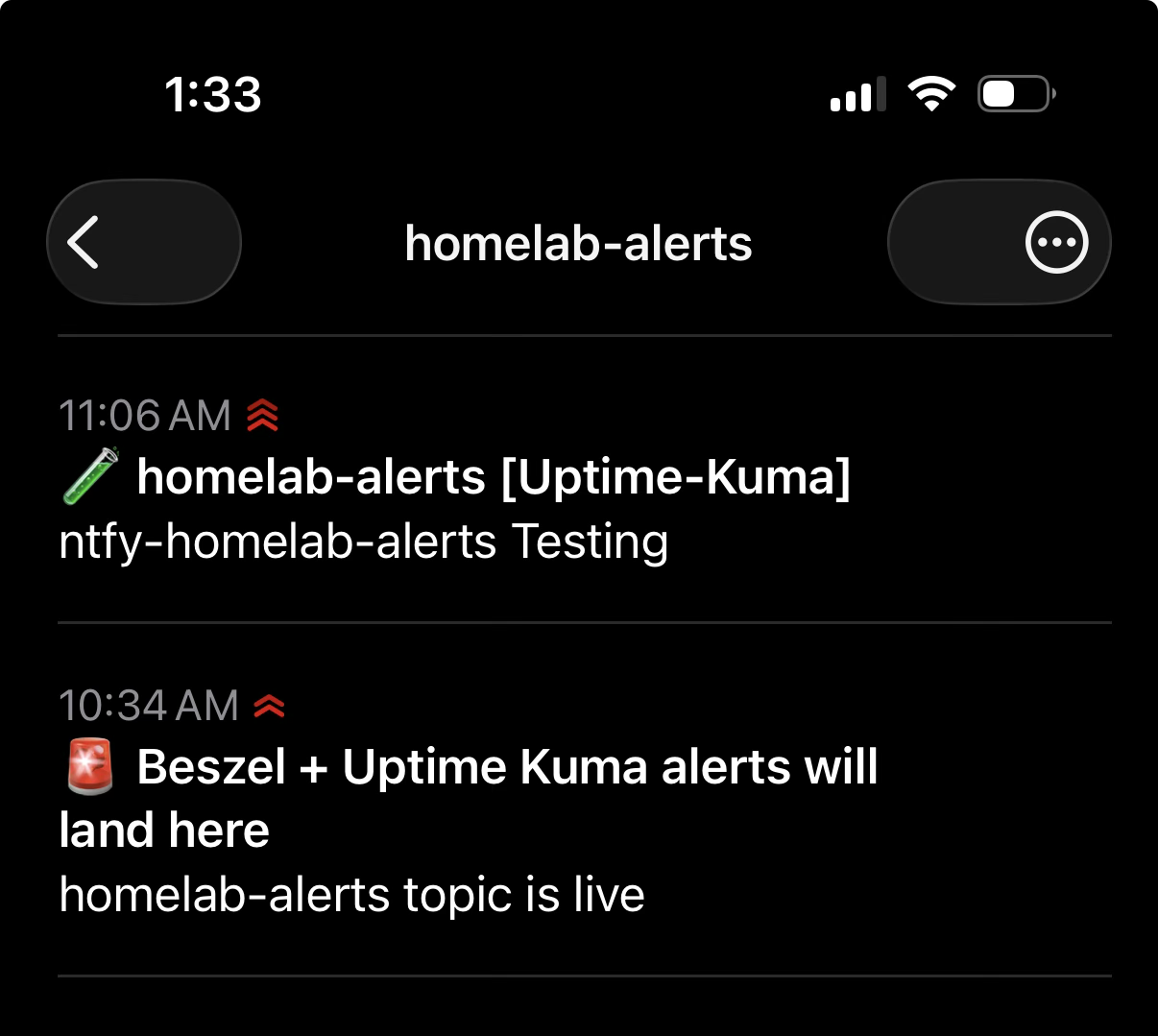
Hit Test, confirm the notification lands, then Save.
Then assign this notification to your monitors — open each monitor, scroll to Notifications and toggle on ntfy-homelab-alerts.
Part 3 — Hardening with Access Tokens
Using passwords in service URLs is fine for a homelab, but access tokens are better practice — each service gets its own token, and if one is ever compromised you revoke just that token without affecting anything else.
Generate tokens
Jump into LXC 158:
pct exec 158 -- bashCreate a dedicated token for each service:
ntfy token add publisher --label beszel
ntfy token add publisher --label uptime-kuma
List to verify:
ntfy token listExpected output:
user publisher
- tk_owy8d8x8p5ddx7gwdwi7g72n4yypi, never expires, label: beszel
- tk_irmbr8hvgitzipx5ec2byc01ormzj, never expires, label: uptime-kuma
Update Beszel
Go to Settings → Notifications, remove the old URL and replace with the token format. Per the Beszel ntfy docs, the token format uses a colon directly before the token with no username:
ntfy://:tk_owy8d8x8p5ddx7gwdwi7g72n4yypi@192.168.0.158/homelab-alerts?scheme=httpTest and save.
Update Uptime Kuma
Go to Settings → Notifications, edit the ntfy notification. Clear the username and password fields and put the token in the Token field:
- Token:
tk_irmbr8hvgitzipx5ec2byc01ormzj - Username: (clear this)
- Password: (clear this)
Test and save.
Revoke unused tokens
If you created any test tokens during setup, clean them up:
ntfy token list
ntfy token remove publisher <token>
Keep only the labelled tokens — one per service, nothing anonymous.
What You End Up With
| Service | Integration | Token |
|---|---|---|
| Beszel | Shoutrrr ntfy URL | beszel token |
| Uptime Kuma | Native ntfy | uptime-kuma token |
Both monitoring tools now send alerts directly to ntfy on homelab-alerts. Beszel fires on CPU, memory, disk, temperature, load average, and status changes. Uptime Kuma fires when any monitor goes down or recovers.
What’s Next
Media stack notifications
Sonarr, Radarr, Jellyfin, and Seerr don’t have native ntfy support — they’ll route through apprise on LXC 159 to a separate homelab-media topic. That keeps download completions and library updates out of the alerts feed and lets you set different notification priorities per topic on your phone.